
If you are setting up a new server and wondering where to start with weapons and vehicles, this guide explains the order to install the ayedens advanced weapon fivem scripts we carry at FiveM Shops. The list has four entries, from a weapon animation script to a brake overheating resource, plus a custom ped.
The order matters because each resource touches a different part of play. Weapon handling affects every combat scene, the interface affects every session, the ped changes how characters look, and the brake script changes how cars feel. Install them one at a time, test each with a small group, and only then add the next one.
What to install first from the ayedens advanced weapon fivem scripts
Ayedens | Advanced Weapon Animation Script
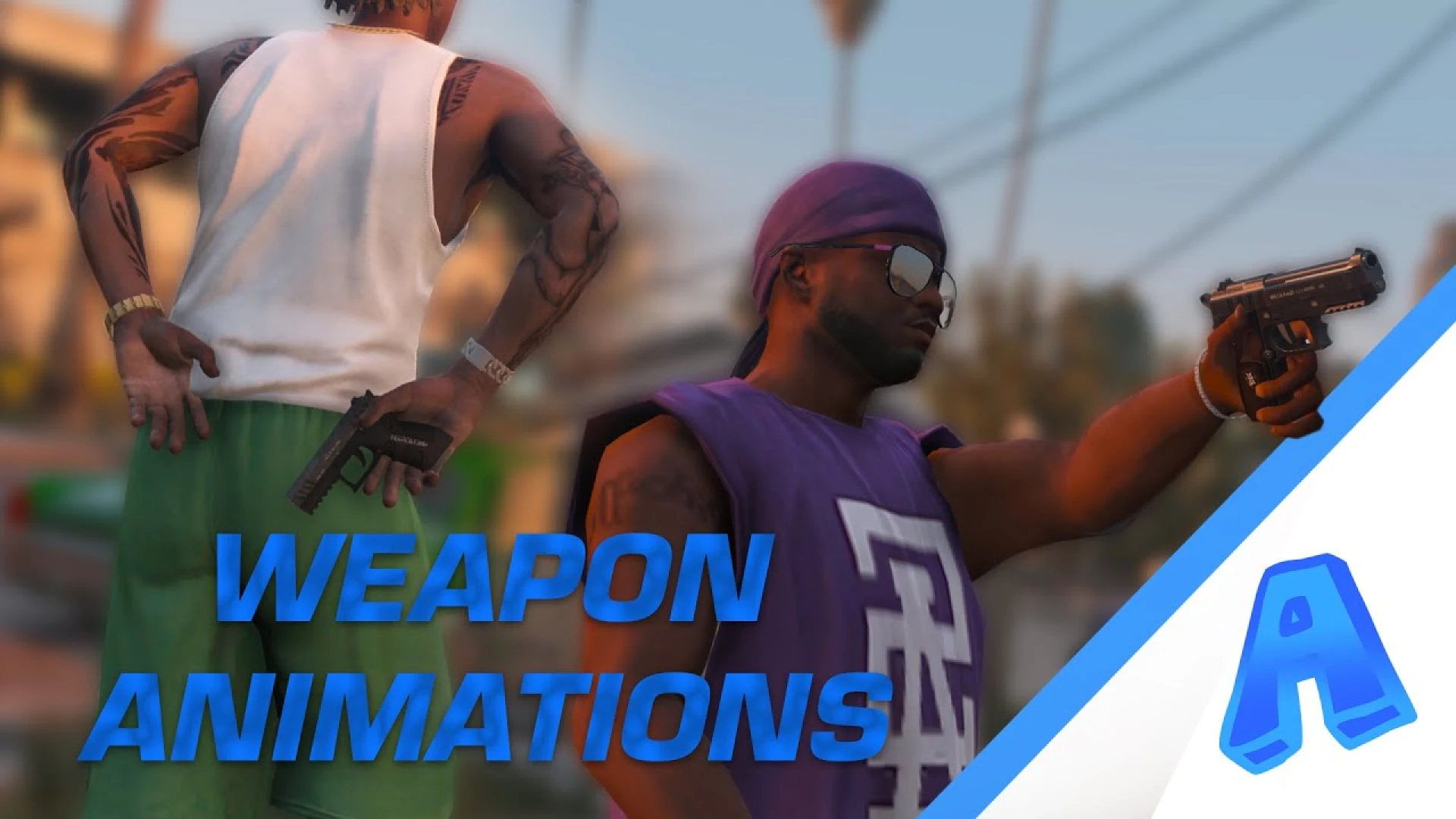
The Ayedens | Advanced Weapon Animation Script replaces the stiff default motions of firearms with draw, holster, reload and carry animations. The listing says every weapon class gains believable handling that reads clearly to nearby players and looks convincing on stream. That makes combat and patrol feel more grounded than the base game manages on its own.
Install it first because it touches every player who holds a weapon, so it sets the baseline for everything else in combat and patrol roleplay. The listing points to a showcase video that runs through the animations, which is a useful check before you let players use it. Test it with a small group before you open it to the whole server.
Best for: combat and patrol roleplay where weapon handling is part of the scene.
Thunderbolt
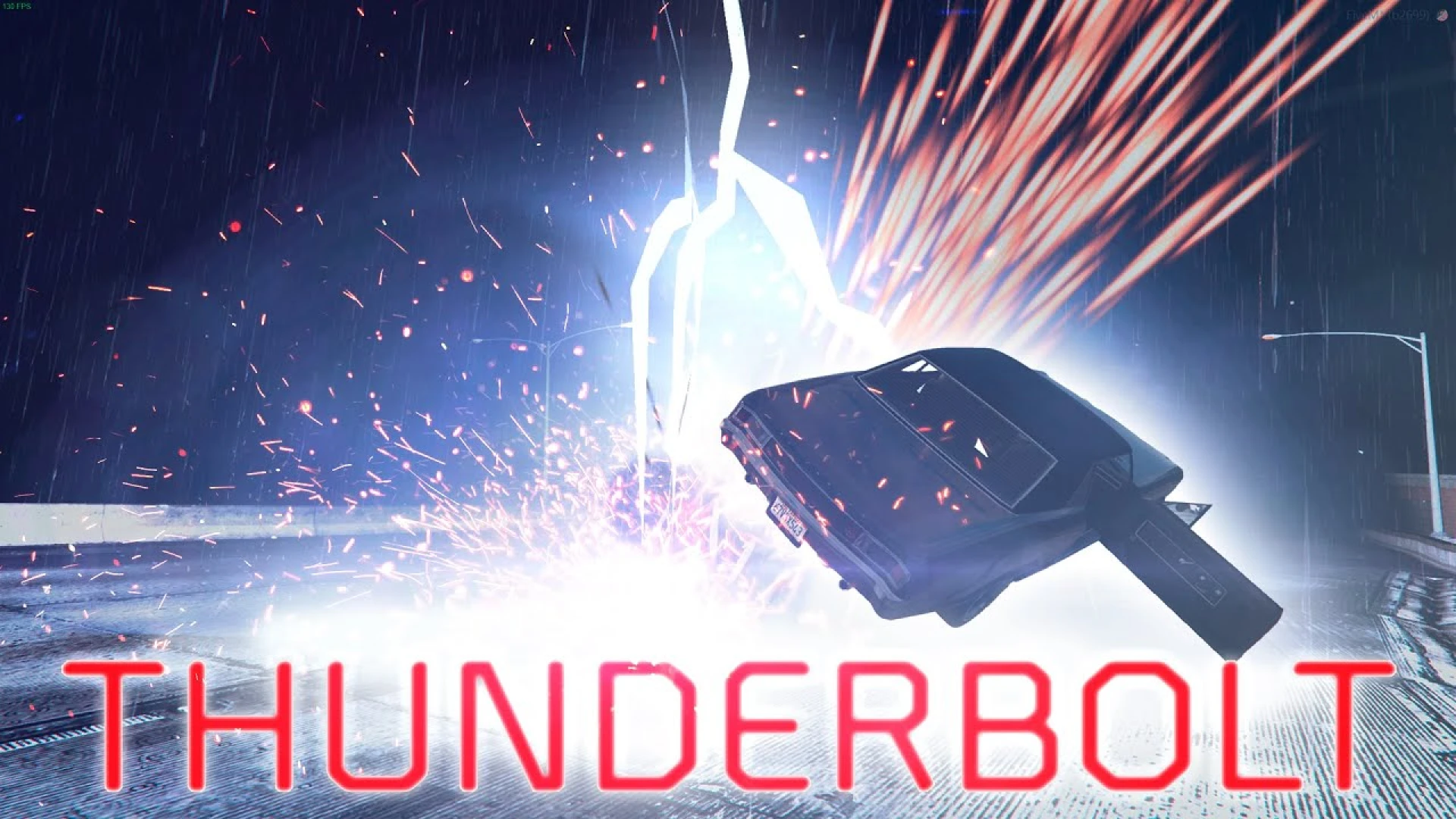
The Thunderbolt is a polished, configurable resource that the listing describes as slotting cleanly into modern roleplay servers. It pairs a responsive interface with sensible defaults, so your community notices the benefit as soon as the resource starts. The listing names ESX among the frameworks it is built to work with.
Install it second, once the weapon animations are steady, because it adds an interface layer that players see in every session. Check the configuration defaults before you change anything, since the listing stresses sensible defaults. A configurable resource is easiest to tune once the rest of the server is stable.
Best for: servers that want a polished interface with sensible defaults and ESX compatibility noted in the listing.
Astra Ped
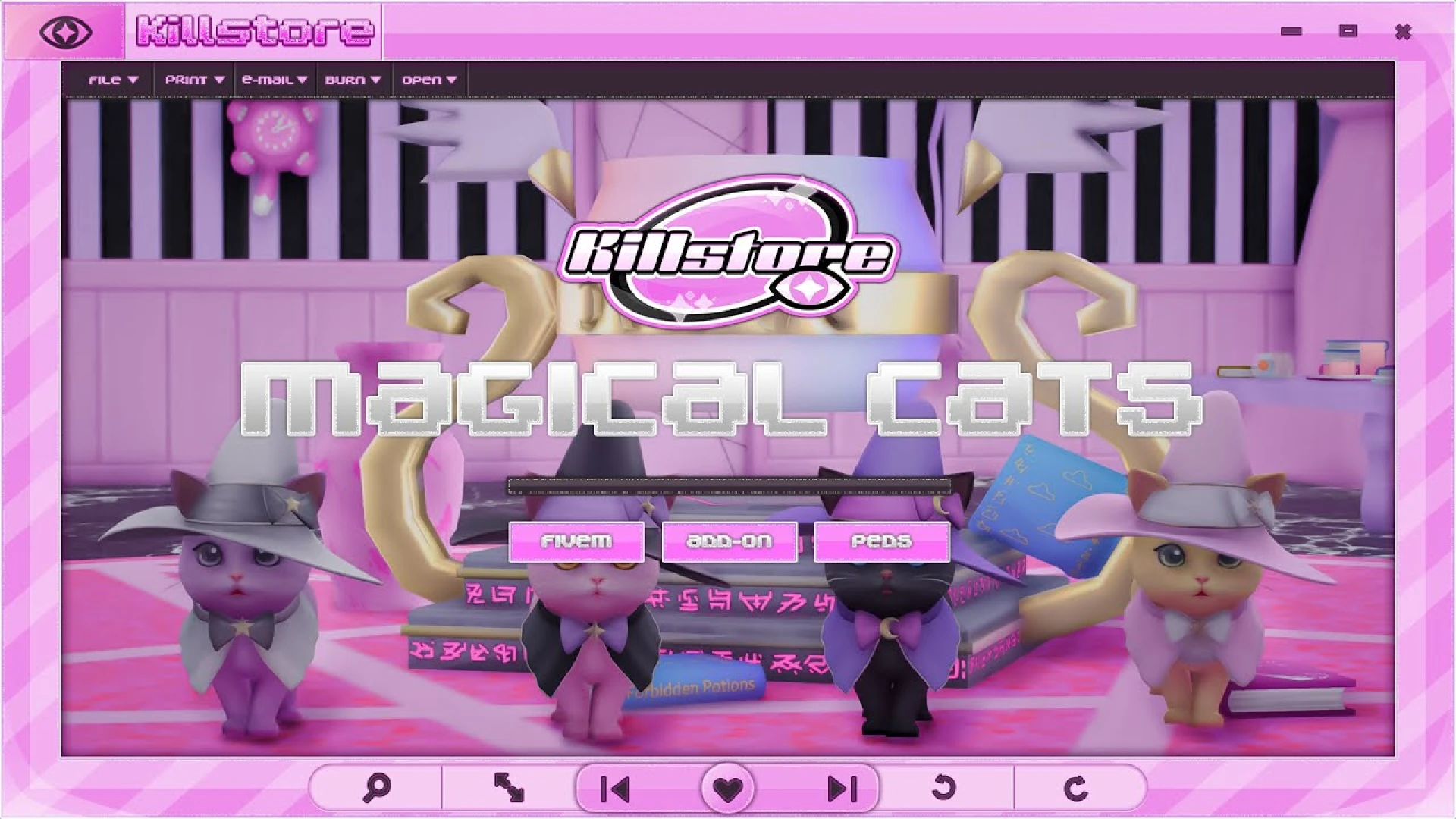
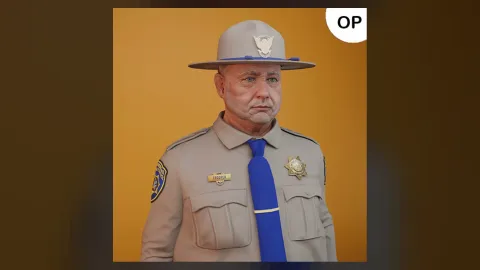
The Astra Ped adds a distinctive custom character model for players, NPCs or event roles. The listing describes clean topology and careful texturing, so it looks at home beside base-game characters while standing out enough to feel special. It follows the standard skeleton, so walking, driving and emote animations work without odd deformation.
Add the ped after the core scripts, since it changes how characters look across the server. Assign it to a specific role, such as an event host or a shop owner, rather than making it the default model, so the look stays special. The listing says it drops in directly, so you can test it on one role first.
Best for: event roles, storytellers and NPCs that need a distinct face.
KuzQuality Brake overheating
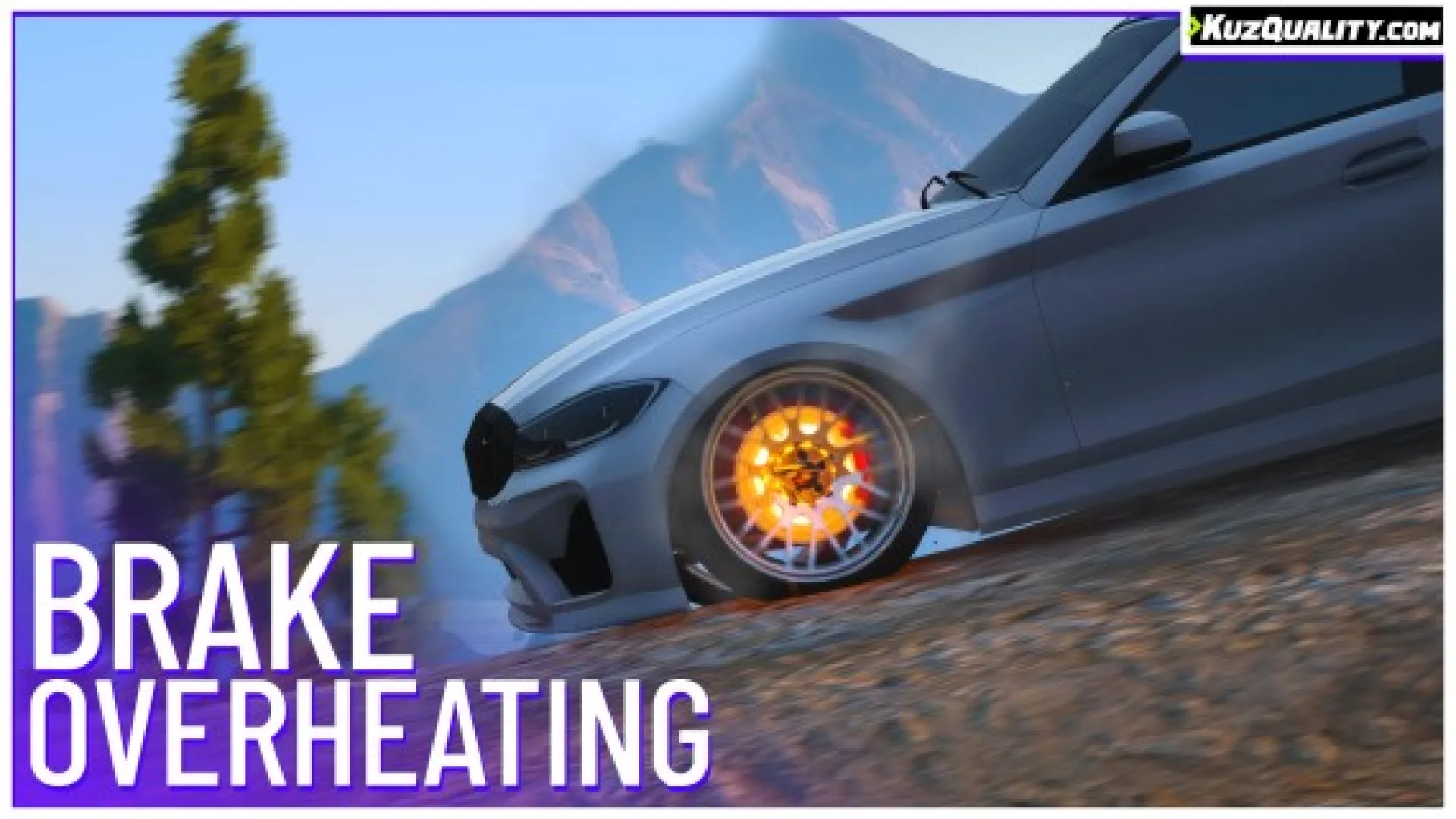
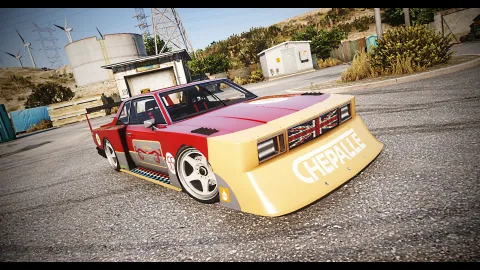
The KuzQuality Brake overheating script is from KuzQuality and is described as shipping finished rather than half-built. The files are packaged, the assets are said to be tested in a live environment, and the script is ready to run once it is streamed. The listing also points to sensible file sizes and no runaway draw calls.
Install it last among the four, because brake behavior is something players notice on every drive. Test it with a few cars before you roll it out, and check the product page for setup details. A vehicle script is easier to judge once the core scripts are steady.
Best for: vehicle-heavy servers where driving detail matters.
A suggested install order for your server
Follow this order so each system is proven before the next one arrives. Each step is short, and each one can be rolled back on its own if a problem shows up.
- Advanced Weapon Animation Script, because it affects every armed player.
- Thunderbolt, once the weapon handling is steady.
- Astra Ped, for event roles and a few NPCs.
- Brake overheating, once driving is a main activity on the server.
Testing each script before you open the server
- Start one resource at a time and watch the server console for errors.
- Join with a small group and perform the actions each script changes, such as drawing, reloading or driving.
- Check client performance with several players nearby before you add the next resource.
- Read the setup notes on each product page, since file layout and configuration are the details to confirm first.
| Product | Category | Best for |
|---|---|---|
| Ayedens | Advanced Weapon Animation Script | Scripts | Combat and patrol roleplay |
| Thunderbolt | Scripts | Polished interface with sensible defaults |
| Astra Ped | Scripts | Event roles and NPCs |
| KuzQuality Brake overheating | Scripts | Vehicle-heavy servers |
Questions about the ayedens advanced weapon fivem scripts
Do these scripts need ESX or QBCore?
The Thunderbolt listing names ESX among the frameworks it is built to work with. For the other three, the copy does not name a framework, so check each product page before you connect them to your job or economy systems.
Which script should I install first?
Start with the weapon animation script, because it affects every armed player. Add the others once that is stable on your server.
Are these scripts ready to run after download?
The brake overheating listing says the files are packaged and ready to run once streamed, and the Astra Ped listing says it drops in directly. Confirm the setup details on each product page first.
Browse the Scripts collection on FiveM Shops to see the rest of the scripts range, then open each product page to confirm install notes before you add the ayedens advanced weapon fivem scripts to your server.